· 6 min read
How to turn a picture into a cartoon
To turn a picture into a cartoon, run filters over it in a photo editor or have it redrawn as an illustration. On Anime Frame, you sign in with your email and a one-time code, pick the photo and choose a style, and your picture comes back drawn as anime in minutes, at full quality with no watermark.
How to turn a picture into a cartoon with Anime Frame
- Sign in with your email. Go to animeframe.com, enter your email, and type in the one-time code we send you.
- Pick the picture. Choose the photo with the moment in it, like the two of you on the station platform or your grandparents at the lake.
- Choose a style for this frame.
- Let it be drawn. Your picture comes back as an anime illustration in minutes.
- Download it and send it. The frame saves at full quality, with no watermark, ready to post, print or give to the people who were there.
Each finished picture uses one frame. Frames come with a plan, or in a one-time pack whose frames never expire.
A worked example: two dogs in the long grass
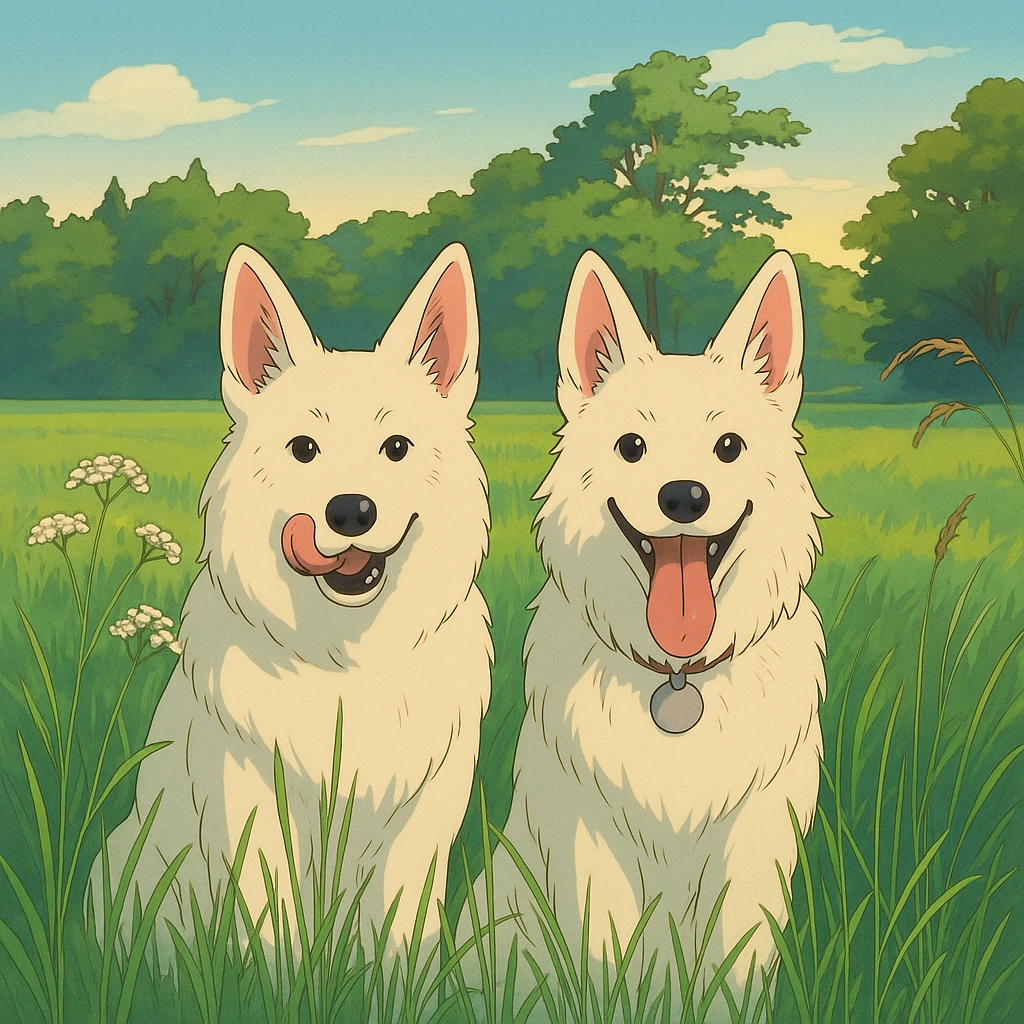
The picture at the top of this page is a frame Anime Frame drew from a photo of two white dogs in long grass, tongues out, the tag still on one collar.
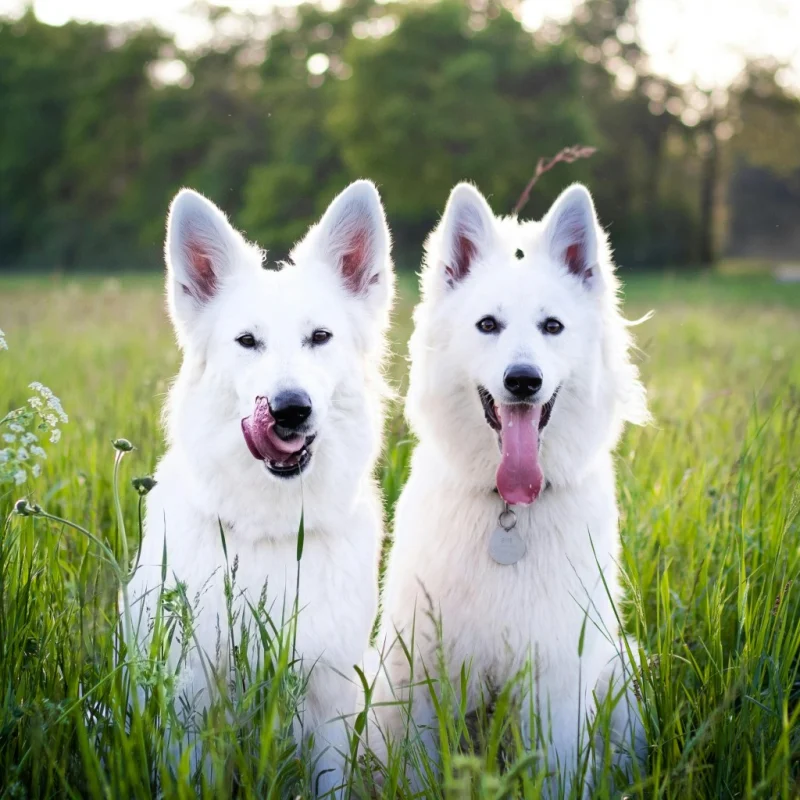
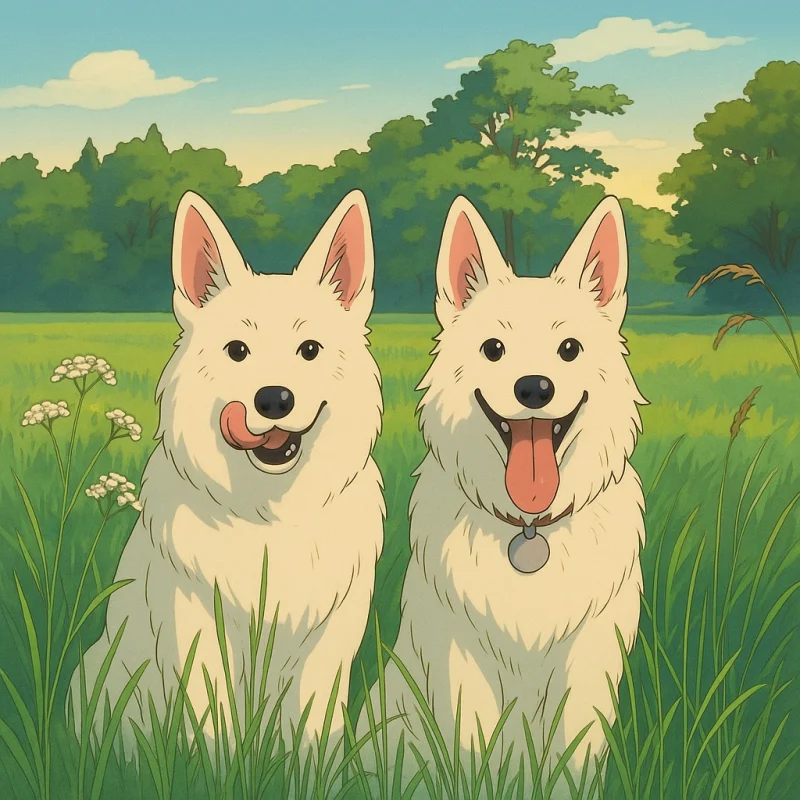
Next to the photo, the cartoon is still that moment. The same two dogs sit in the same grass with the tag on the collar, and the picture around them is drawn as a frame from an anime, down to a blue sky with clouds behind the trees.
The same photo makes an anime portrait to give to whoever loves those two dogs most.
Other ways to turn a picture into a cartoon
There are four other common ways: an online cartoon tool, a filter stack in a photo editor, an image model on your own computer, or a written prompt in a general image generator.
Use an online cartoon tool
Several design and photo sites have a photo to cartoon feature. You upload the picture, pick an effect, and download the result.
- Adobe Firefly. As of 18 November 2026, the Firefly AI cartoon generator works in four steps: log in with an Adobe ID, upload an image or write a prompt, choose effects and settings, then download.
- BeFunky. As of 18 November 2026, in BeFunky's photo to cartoon feature you open the photo in its Photo Editor, choose a cartoon effect in the Artsy tab, and save. BeFunky says the cartoon effects are part of BeFunky Plus, its subscription, and that you can try them without an account.
- Image to Cartoon. As of 18 November 2026, imagetocartoon.com says it works without an account, and it takes JPG, PNG and WebP files up to 10 MB.
- Canva. Canva also has a photo to cartoon page.
Build the cartoon by hand in Photoshop
A photo editor can give a picture a cartoon look with a stack of filters, without anything being redrawn. A freeCodeCamp tutorial from November 2019 does it in Photoshop with three layers, the photo and two copies of it: Cutout on the middle one to flatten the colors (Levels 7, Edge Simplicity 2, Edge Fidelity 2), then Poster Edges, Threshold at 50, Oil Paint and Threshold again at 150 on the top copy for the ink lines, blended with Color Burn. Because the filters work on the photo itself, every face stays exactly where it is in the picture.
Run an image model on your own computer
An image-to-image model takes your picture as its starting point and redraws it from a text prompt, as the Hugging Face Diffusers guide (version 0.43) explains. Its strength setting decides how much the result still looks like your photo: a lower value stays closer to it, and at 1.0 your photo is more or less ignored. Strength also sets how many of the model's steps run: at 50 steps and a strength of 0.8, 40 of them are used. A March 2025 walkthrough from Make Tech Easier runs this kind of model with Stable Diffusion and says you will need a decent graphics card, preferably Nvidia.
Describe it to a general image generator
VEED's guide, updated 10 November 2026, has you use ChatGPT to write a detailed prompt for the look you want, paste it with your photo into an image generator such as ChatGPT, Midjourney or Leonardo.AI, then download the result. The same guide's questions name apps that cartoon a photo, such as ToonMe, ToonApp and Prisma.
Which way fits your picture
- An online cartoon tool when you already design in Canva or edit in BeFunky and want the effect next to your other work.
- Photoshop filters when every face must stay exactly where it is in the photo, and you have the software and the time.
- A model on your own computer, or a written prompt, when you want to set every detail yourself and don't mind a few tries.
What happens to your picture
This is what other tools said on 18 November 2026 about a photo you upload, and where the picture goes if you work on your own computer:
- Image to Cartoon: deleted within 2 hours. imagetocartoon.com says "your original image and generated result are automatically deleted from our systems within 2 hours."
- BeFunky: no other use without your consent. BeFunky's photo to cartoon page says "We do not store, share, or use your photos for any other purpose without your consent."
- Adobe Firefly: not used for training. Adobe's Firefly page says "Firefly models never train on what you create or upload."
- Canva: may train its AI models on uploads. Canva's privacy policy, last updated 2 November 2026, says Canva may analyze media you upload to train its AI models, and that you can manage this on the privacy controls page of your settings.
- Photoshop filters, or a model on your own computer: stays with you. The picture never leaves your computer.
How Anime Frame handles your photo is on the About page.
Pictures worth turning into a cartoon
Start with the picture you would print. A photo of you becomes your own anime portrait, or an anime pfp for every account you have. The two of you at the lake, or your parents on their anniversary, make a portrait to give. The dog asleep on the couch, or the cat in the one patch of sun, becomes the picture on your lock screen. And if you came looking for an anime filter for your photos, Anime Frame redraws the whole picture instead of laying an effect over it.
Before you upload a friend's photo
If the picture is of a friend, a partner or their kids, ask them first, and tell them which tool you are using. The list above says what each one does with the photo, so they can decide too.
Questions
What is the easiest way to turn a picture into a cartoon?
On Anime Frame, sign in with your email, pick the photo and choose a style, and your picture is drawn as anime in minutes.
How long does it take to turn a picture into a cartoon?
Anime Frame draws a picture as anime in minutes. In Photoshop, the cartoon takes as long as the filter steps take you.
Do I need an account to turn a picture into a cartoon?
On Anime Frame you sign in with your email and a one-time code. As of 18 November 2026, imagetocartoon.com says it works without an account, and BeFunky says you can try its cartoon effects without one.
Is my photo stored when I turn a picture into a cartoon?
As of 18 November 2026, imagetocartoon.com says it deletes uploads within 2 hours, and Canva's privacy policy says Canva may use uploads to train its AI models. How Anime Frame handles your photo is on its About page.